How do I open a PDF in Acrobat instead of the browser?
By default, PDF files opened from a web page display inside the browser window with a limited toolbar:
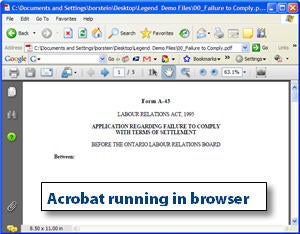
The default behavior does not suit the needs of all legal users. Some eFiling sites require running in the browser, but other applications require opening the PDF directly in Acrobat.
It is easy to change the way that Acrobat opens files from the browser by modifying Preferences.
Read on to learn how to change Preferences.
I’ll also tell you about a very useful Firefox extension that let’s you choose— on the fly— whether you would like a PDF to open in the browser or in Acrobat.
An Easy Preferences Change
To change the default PDF open behavior when using a web browser:
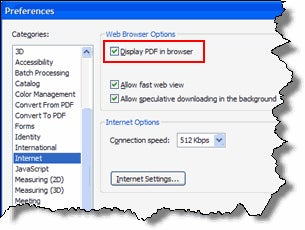
- Choose Edit—>Preferences
- Select the Internet category from the list on the left
- To display the PDF in the browser, check “Display in browser”
To open PDFs from the web directly in Acrobat, uncheck “Display in browser: -
A More Flexible Approach using Firefox
Mozilla Firefox, a free, Open Source web browser, is becoming increasingly popular in the legal community. Some legal users feel it is more secure than Internet Explorer. When you install Firefox, all of your existing bookmarks are imported.
One compelling reason to switch to Firefox is the great number of free extensions which can add useful features to the application.
The PDF Download extension is a free add-in that offers the user the choice of opening the PDF in the browser or in Acrobat.
To install the extension, open Firefox and go the PDF Download page.
Using PDF Download
Using the PDF Download extension is simple.
When a link to a PDF is clicked, the window below will appear:
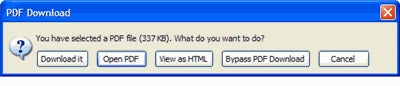
The first two options on the left give users the flexibility they need to download the PDF or open it in the browser.
PDF Download Preferences
With a bit more work, you can change PDF Download to meet your particular needs.
In Firefox:
- Go to Tools—PDF Download Options
-
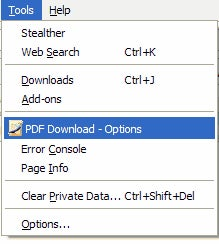
- Instead of the pop-up option window, you can set a different behavior. This is useful when you know you will need to open several PDFs outside the browser:
-
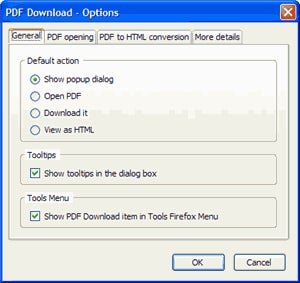
Although PDF Download offers PDF to HTML conversion, I found this feature slow and inaccurate for many documents.
What about Download Options for Internet Explorer?
From what I understand, IE does not offer a flexible enough programming interface to allow this kind of customization.
If you know differently, let me know!