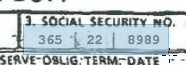
Redaction is the permanent deletion of data from documents.
In the past, markers were used to black out information on documents.
These days, it simply doesn’t make sense to print out a document to redact it. The process is slow, expensive and inefficient.
Law firms, government agencies and corporations around the world rely on Adobe Acrobat to safely and permanently remove content from the data stream of documents.
Adobe first offered redaction tools starting with Acrobat 8 and redaction capabilities have continued to improve with each new release.
In Acrobat X Pro, several new Redaction features were introduced:
Repeat Redaction Mark across Pages Useful for redacting headers and footers from documents
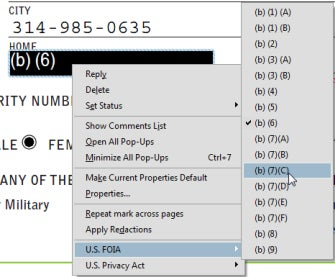
Right-click to apply Exemption Codes Add case codes and privacy codes as overlay text to redaction marks.
Ability to apply multiple Exemption Codes Multiple exemption codes may be listed as overlay text on a redaction mark
Partial Pattern Redaction Use this feature to mark part of a pattern for redaction. For example, you could mark part of a Social Security Number or Credit card number. Useful for cases where you need to identify individuals in part of a case without revealing personal identifying information.
Set Appearance of Redaction Marks You can now set the appearance of the Redaction marks during review. For example, you can mark items with a transparent red overlay if desired.
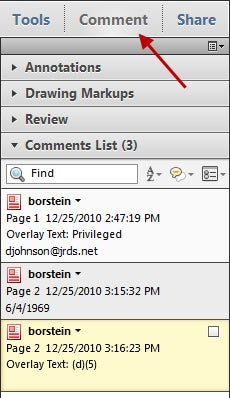
Overlay Text indicated in Comments List You can now view overlay text in the Comment list for quick review.
So, you want to redact some documents. How do you get started?
To help, I bring you Guide to Using Redaction in Acrobat X Pro. This article is and update of my earlier article for Acrobat 9 and offers a step-by-step guide to using these tools in your firm or organization.
In this article I cover:
Redaction Preferences
How to mark text and graphics for redaction
Setting common redaction properties
Adding Overlay Text and Exemption codes to a redaction
Creating a report of redactions
Applying redactions to permanently remove information
Using an Action to automate the redaction workflow
Getting Ready
Redactions must be carefully applied and managed. Here are a few tips to get ready:
Copy your “to be redacted” documents into a new folder on your hard drive
OCR the documents if necessary
Review the documents to get a sense of what needs to be redacted:
Personal identifying information such as drivers license numbers, social security numbers, etc.
Names of spouses, minors or others not associated with the case
Trade secrets such as formulas, computer code, etc.
Suggested Redaction Workflow
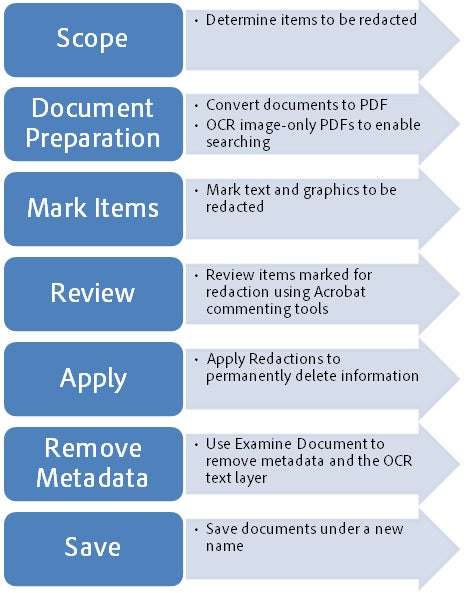
Please review the following image below for a suggested workflow.
Step 1: Set Redaction Preferences
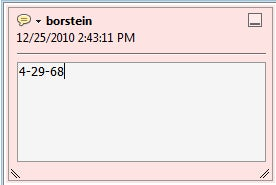
Automatically Copy Text into the Sticky Note for a Redaction
Redactions exist as a type of annotation until you apply them which permanently removes the information.
I suggest setting the the preference below to automatically copy text into the sticky note:
Choose Edit> Preferences (Windows) or Acrobat> Preferences (Mac)
Select the Commentingcategory from the list on the left.
Enable the check box labeled “Copy Selected Text into Highlight, Crossout, and Underline comment pop-ups
Click OK
Step 2: Redacting Text and Graphics
To redact information in Acrobat X Pro. . .
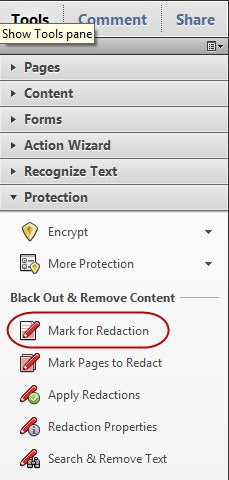
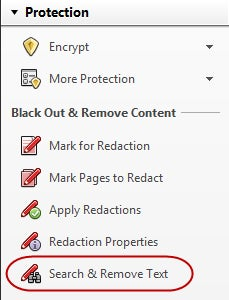
Open the Tools Panel
Twirl open the Protection section
Select Mark for Redaction
The tool you will use for almost all of your work is the Mark for Redaction tool.
Context Sensitive
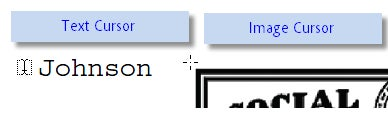
The Mark for Redaction Tool cursor changes depending the content to be redacted.
To Redact Text
Select the Mark for Redaction tool
When you hover over text, the Mark for Redaction tool becomes a text selection cursor. Select the text to mark it for redaction.
Tip: Did you select too much? Hit CTRL-Z to undo the redaction.
To Redact a Graphic or Image
Select the Mark for Redaction Tool
Place the cursor over an image or if no objects are present, across hair cursor (+) appears.
Draw a rectangular selection area to redact. Anything found within the area— images, text, vector objects— will be “cut out” and redacted.
Force an Area Redaction Sometimes it can be difficult to select text properly. You can force Acrobat to present the crosshair for an area redaction by holding down the CTRL key.
Tip for Redacting an Image You can select all of the pixels in an image for redaction by double-clicking on it with the crosshairs (+).
Previewing a Redaction
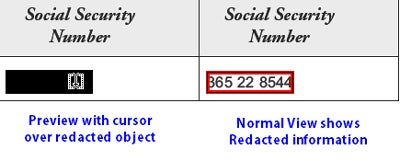
Using the Mark for Redaction tool, you may preview the redacted item.
Select the Mark for Redaction tool
Hover over a redaction mark to preview it
Changing the Appearance of Redactions
By default, redactions appear as solid black rectangles. The default appearance serves most folks just fine, but may be customized.
You may set a number of options such as…
Applied Redaction Color
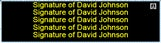
Overlay Text
Text Color and Repeat
To change the properties of a Redaction mark
Select the Mark for Redaction tool
Hover over the redaction mark you wish to change
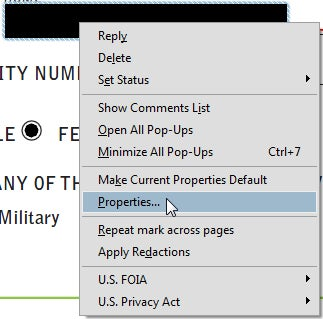
Right-click and choose Properties
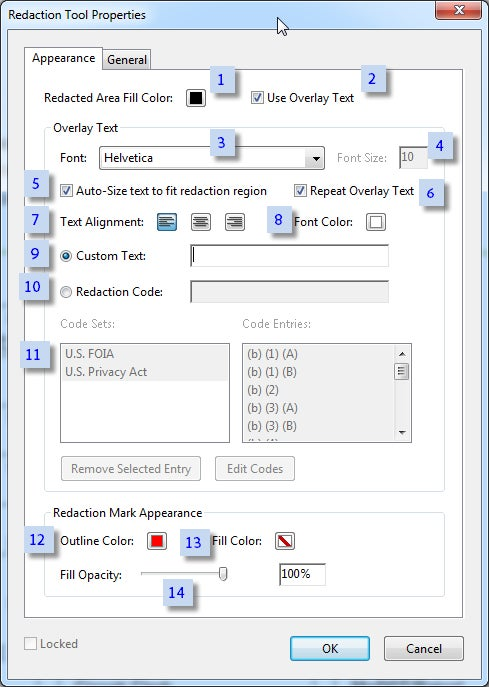
The Redaction Properties window is straightforward. Options below are referred by number:
Set the color of the redaction here. You may also choose “no color” as an option.
You may have overlay text on top of the redaction.
Choose typeface for overlay text
Set font size for overlay text
Auto-size scales the text to fit the width of the redacted area
Enable to repeat the text over the redacted area
Set alignment of overlay text
Set color of overlay text
Enable and type in the text string to appear on top of the redaction
Exemption Codes will be listed here. Note: You cannot type into this box, Enable it to apply an Exemption Code
Redaction Codes. Redaction codes pre-defined sets of text used to denote the reason or statute under which the redaction was made. Acrobat Pro includes two pre-populated sets— U.S. FOIA (Freedom of Information Act)and U.S. Privacy Act. You can also create and save your own sets.
Set the outline color for the Redaction Mark. Note: This only affects the appearance of the marked item, not the final appearance once redacted.
Set the fill color for the Redaction Mark Note: This only affects the appearance of the marked item, not the final appearance once redacted.
Set the Opacity of the Redaction Mark Note: This only affects the appearance of the marked item, not the final appearance once redacted.
To change the default appearance of all redaction marks:
Use the Mark for Redaction tool to create a redacted item
Right-click and choose Properties to change the appearance. Click OK.
Right-click on the item and choose “Make Current Properties Default”
Frequently need to change color of Redaction Marks? Use the Properties Bar, instead. Type CTRL-E (CMD-E on Mac) to open it. Select a Redaction Mark and you can change the color of it easily.
Deleting a single Redaction Mark
Until you click the Apply Redactions button, the redaction marks are editable.
Here’s how to delete a Redaction Mark
Make sure the Mark for Redaction tool is selected
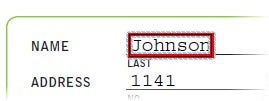
Hover over the Redaction mark and click to select it
You’ll see some subtle animation around the edges.
Hit the DEL key to delete the redaction.
Adding Overlay Text and Exemption Codes to a Redaction Mark
Overlay text appearances on top of a redaction mark and is present even after redactions are applied.
Why would I use Overlay Text and/or Exemption Codes?
The judge has ordered you to place the reason for the redaction on top of the redaction mark to speed his or her review.
You want to limit the number of challenges to your redactions by supplying the other side with the reason the information was redacted.
You work in a government agency which has to make documents public. You may be required to place a code or other mark on top of the redaction to meet agency guidelines.
Adding Overlay Text to a Redaction Mark
Create a redaction mark
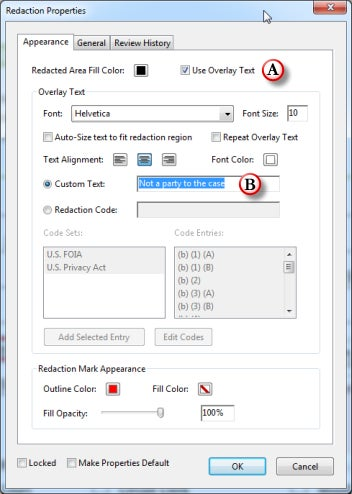
Right-click on the redaction mark and choose Properties A- Check Use Overlay Text B- Enter text into the Custom Text field
Click OK
Adding an Exemption Code to a Redaction Mark
Create a redaction mark
Right-click on the redaction mark and choose either US FOIA or US Privacy Act (or exemption code set of your own creation).
Repeat for as many exemption codes as needed per redaction
Creating Custom Exemption Code Sets
Creating exemption codes isn’t difficult, but it is not that intuitive. Here’s how to do it:
Create a redaction mark
Right-click on the redaction mark and choose Properties
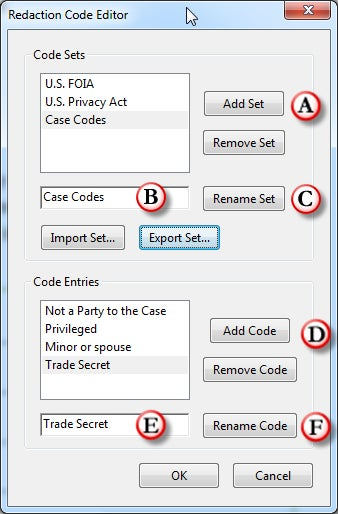
Click the Edit Codes button
Click the **Add Set **button (A)
Change the name of the set in the entry field (B)
Click the **Rename Set **button (C)
Click the **Add Code **button (D)
Change the name of the code in the entry field (E)
Click the **Rename Code **button (F)
Repeat steps 7 to 9 for as many codes as needed
Click OK when finished
Deleting or Changing Multiple Redaction Marks Simultaneously
Acrobat’s Comments Panel offers a list view of all of the Redaction marks in the document.
From the Comments Panel, you can delete or change the properties of many redaction marks at a time.
To open the Comments Panel
Click the Comments Panel and twirl open the Comments List section.
Working in the Comments List
You can select multiple comments holding down the down the CTRL key.
Hit the DEL key to delete selected comments.
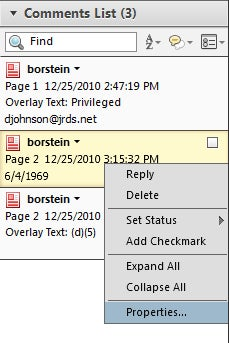
To change the properties of multiple comments, make a selection then, right-click and choose Properties.
To select all the Redaction marks in the Comments list:
Select the first comment in the list
Scroll to the bottom of the list
Hold down shift and select the last comment
Search and Remove Text
Acrobat X allows you to easily search and remove text.
Search and Remove Text feature may be used to search intelligently for:
Single text strings
Multiple text strings
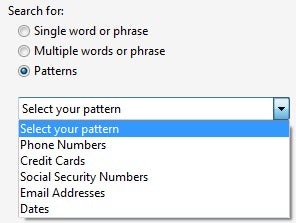
Patterns such as Social Security numbers
. . . in a single document or across multiple documents.
To search and redact
Looking at the Search and Remove Text Window
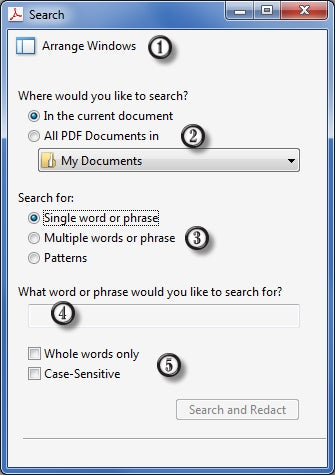
The Search and Remove Text window offers a few options:
The Arrange Window button conveniently sizes the Search and Document windows
You can search in the front most (current) document or point to a whole folder of documents.
Set the search scope for single or multiple words, or patterns
Enter text to search for (only available for Single word option)
Determine whether you will search for whole words or if capitalization matters
Searching for a Single Word
Click **Search and Remove Text **in the Protection Panel
In the Search window, click Arrange Windows if necessary
In the Where would you like to search area, select In the current document or to browse to folder of files to perform cross-document search.
in the Search for area, choose_ Single Word or Phrase_
Enter your text in the search field
Click the** Search and Redact** button
Working with the Results
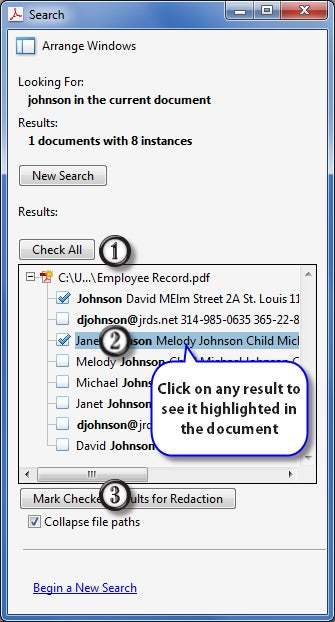
Once the search is complete, the results window opens.
Clicking **Check All **will add a mark to all the words found
You can also individually check any of the results. If you click on the result, you can preview the word in the PDF
Click Mark Checked Results for Redaction to mark the words found
Searching and Marking Multiple Words
Acrobat X can search for and mark multiple words simultaneously. Here’s how:
Click **Search and Remove Text **in the Protection Panel
In the Search window, click Arrange Windows if necessary
In the Where would you like to search area, select In the current document or to browse to folder of files to perform cross-document search.
in the Search for area, choose_ Multiple Words or Phrase_
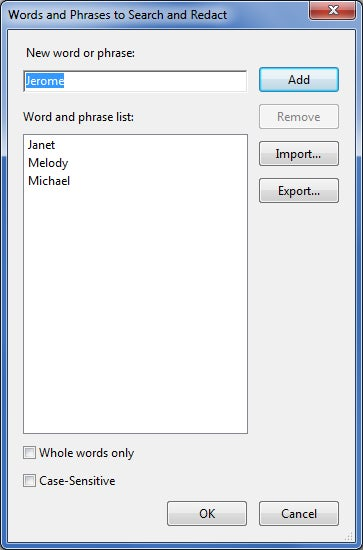
The Words and Phrases to Search and Redact window opens – Enter each word you wish to search for and click Add (Optional) Import a list of words
Click OK
Acrobat will search through the document(s) and place a redaction mark on all words found
Using Pattern-based Redaction
Acrobat can use pattern recognition to find information that varies such as:
Here’s how to use patterns to find this type of information
Click **Search and Remove Text **in the Protection Panel
In the Search window, click Arrange Windows if necessary
In the Where would you like to search area, select In the current document or to browse to folder of files to perform cross-document search.
In the Search for area, choose_ Patterns_
Select the type of information you want to find:
Click the **Search and Redact **button
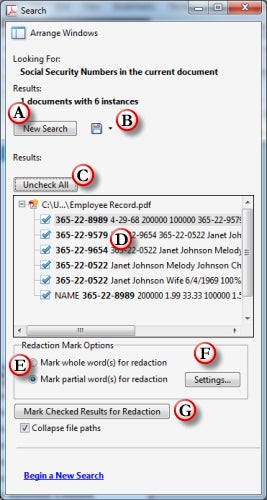
The Search Window opens A- Click to begin a new search B- Click to save the search results to PDF or CSV C- Click to Check All or Uncheck All results D -Select a search item to view the found result in the document window E -Click to enable marking part of the word for redaction (see below) F- Modify settings for partial word redaction G- Marks all found patterns in the document
Step 3: Review Redactions
It’s important to carefully review each page of your document, especially for scanned documents.
Fortunately, redactions in Acrobat are managed using familiar commenting and annotation tools. Thus, you can:
Add notes and comments to Redacted items and send them to another Acrobat Professional user to review, reply to or change
Summarize comments and notes attached to redacted items as part of a review or archival workflow
Approve, reject or delete items to be redacted using the Comments List
Participate in a Shared Review workflow which allows you and your colleagues using Acrobat X Pro to collaboratively redact documents.
To add a note/comment to an item marked for redaction, do one of the following:
Right-click on the item and choose “Open Pop-up Note”
Double-click on the item
To view the Comment List:
Click the Comments Panel and twirl open the Comments List section.
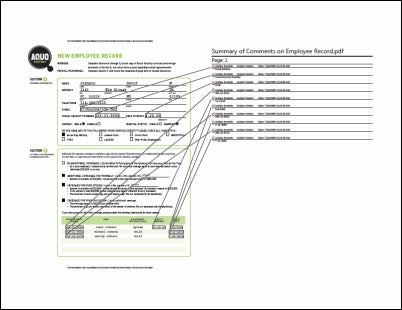
Create a new Document which Summarizes Redactions
If you were headed to meeting with the other side, and you expected some challenges to your privileged and redacted documents, you might want to create a summarized version of your redacted documents to take with you.
This process creates a new, consolidated PDF. Redaction annotations are displayed as call-outs on the document:
To create a summarized document:
Open the document containing your redaction marks. (You need to run this step before you apply redactions.)
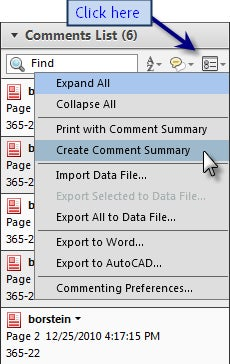
Click the Comments Panel and twirl open the Comments List section.
Click the fly out menu at the upper right of the Comments List and choose Create Comment Summary
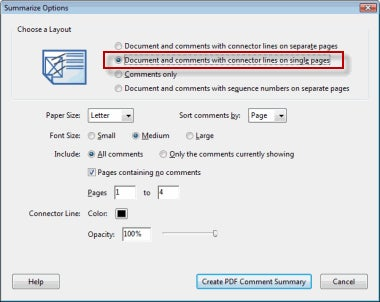
The Summarize Options window will appear. I suggest choosing the second option:
Click the Create PDF Comment Summary button.
Acrobat will create a new PDF which summarizes the comments (redaction marks) on the document
Step 4: Make Redactions Permanent (Apply Redactions)
Applying Redactions in Acrobat permanently removes the information from the document once you save it.
To apply redactions:
Open the Tools Panel
Twirl open the Protection section
Select _Apply Redactions _
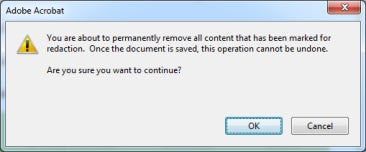
A warning window appears. Click OK
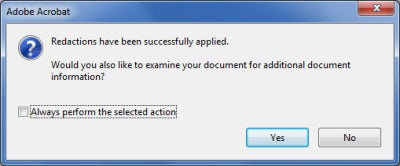
The Redactions are applied. Next, you will see another warning message prompting you to examine the document for metadata. Click the Yesbutton.
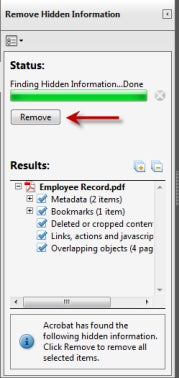
The Examine Document panel opens. Examine Document finds hidden information such as metadata, hidden text, comments, etc. that could lead to an accidental disclosure. Note that the hidden OCR text layer can be removed, too.Click the Remove button.
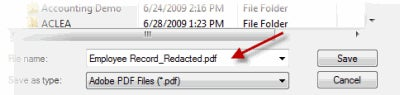
Choose File> Save Acrobat will rename your file automatically when you go to save it:
Automating Redaction Workflow using Actions
Acrobat Actions can automated many of the steps in the redaction process.
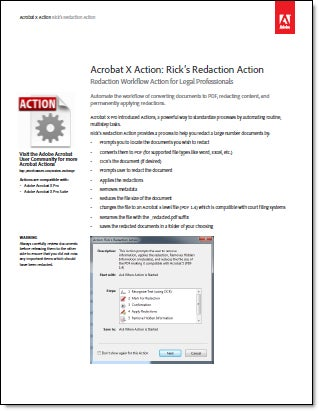
I’ve create an Action that performs the following steps:
Prompts you to locate the documents you wish to redact
Converts them to PDF (for supported file types like Word, Excel, etc.)
OCR’s the document (if desired)
Prompts user to redact the document
Applies the redactions
Removes metadata
Reduces the file size of the document
Changes the file to an Acrobat 5 level file (PDF 1.4) which is compatible with court filing systems
Renames the file with the _redacted.pdf suffix
Saves the redacted documents in a folder of your choosing
Download the PDF with Instructions
(674K)**Hint:**Right-click and Choose Save Target As . . . to save to your desktopYou will need Acrobat X Pro to run the Action.PDF includes:- Installation information - Embedded Action - Instructions on how to use the Action - Customizing information
Final Thoughts
Keep in the mind the following when taking on projects that require redaction:
DO NOT FORGET TO APPLY REDACTIONS! Simply marking text and graphics does not actually remove it.
Use Actions to help automate the redaction process. You can:
Prompt the user to manually redact pages
Perform Word List redaction
Apply Redactions
Search and Redact will only find text in searchable documents. OCR documents first. Even so, since OCR is an imperfect process, carefully review scanned documents.
Carefully review all documents prior to submission in discovery. A two-person review team will catch many more errors than a single person.
Know your court rules and judges orders regarding redaction. Ask the clerk of the court for clarification if you need more information.
Don’t Skip the Examine Document Step Naive users may elect to cover up information in electronic sources and mistakenly believe it is redacted. The Examine Document function can detect and fix these issues.