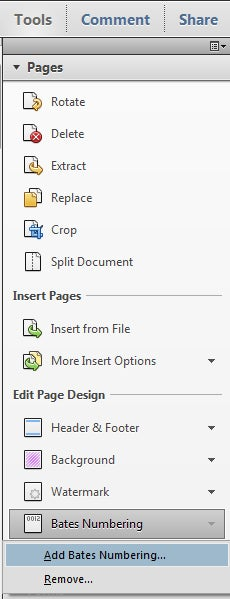
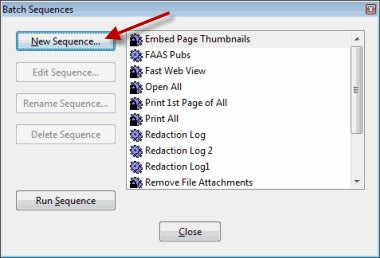
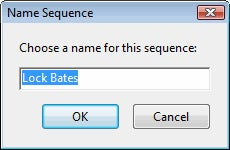
Acrobat 8, 9 and X Pro allow you to apply and remove Bates Numbers to documents.
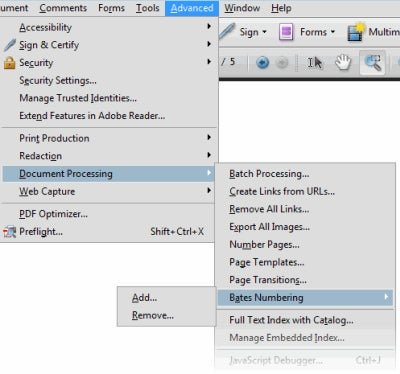
In Acrobat 8 and 9, choose Advanced—> Document Processing—> Bates Numbering:
The ability to remove Bates Numbers is valuable in case you make a mistake during the numbering process. However, due to the adversarial nature of the legal business, attorneys may desire to limit what the other side can do with documents.
To whit, this email I received from an attorney last week:
What can I use to flatten Bates numbers so that they cannot be altered or removed using the Acrobat Bates numbering process?
I know I can print to PDF, save as TIFF, print-then-scan, etc., but am looking for a solution that will work in batch mode and not degrade the appearance of the file. Also, I don’t favor using security settings because I don’t want to restrict the user’s ability to access the file.
In this article, I’ll discuss how to “lock down” Bates Numbers so that they cannot be removed by Acrobat’s “Remove Bates” option.
How does Acrobat store Bates Information?
Acrobat stores information about Bates Numbering, Headers and Footers, and Watermarks as “private data” (metadata) within the PDF.
If you remove the metadata, then Acrobat will no longer be able to update or remove Bates Numbering, Headers and Footers or Watermarks.
How do I remove the information?
Acrobat’s metadata removal utility (Examine Document) may be used to remove all metadata from the document. If you choose Document—> Examine Document, this will prevent changes to the Bates Number.
However, this is a bit of a brute force approach. A better way is to use the PDF Optimizer to remove only the private application metadata from the document, which accomplishes the goal.
Locked Down, but not Impossible A determined person could still remove the Bates Number from a document using Acrobat Pro’s Redaction or Touchup Object tools. Fortunately, there are civil and criminal penalties for the deliberate obfuscation of discovery documents.Keep a Backup Copy! Make sure you run this operation oncopy of the files. If you remove the private data and then decide you want to rearrange the order of the documents, you will be in a world of hurt!
Locking Bates Number in Single PDF Document
Many attorneys gather up all discovery documents into a single PDF. If this is your process, use the steps below to lock down the Bates Number.
In Acrobat X, choose File> Save As> Optimized PDF In Acrobat 8 and 9, Choose Advanced—> PDF Optimizer
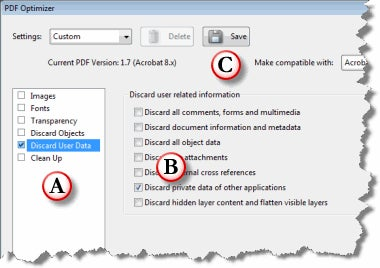
Make the following changes in the PDF Optimizer window:
A) Deselect all categories except for “Discard user Data” B) On the right, choose only “Discard Private Data” C) Click the SAVE button to give the setting a name.
Click OK
Acrobat will ask you to save the document.
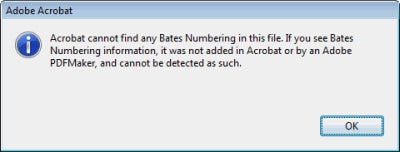
They’re Locked!
Check it out!
Acrobat X Choose the Tools panel, Pages section and chosoe Bates Numbering> Remove
Click the Output Options button at the bottom of the window:
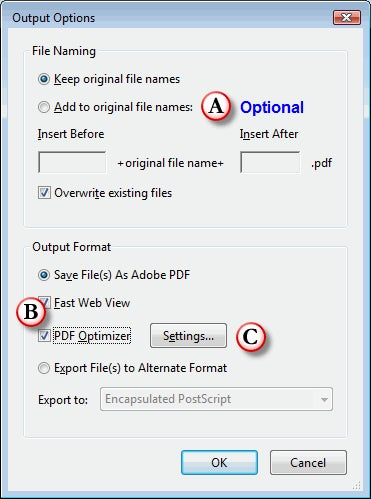
Make the following changes in the Output Options window:
A) Recommended: Add a prefix or a suffix to the file name
Why add a Prefix or Suffix? If you choose this option, Acrobat will not overwrite your original files. You can simply look at the file name to see which files have been processed without having to create a duplicate set ahead of time.
B)Enable the PDF Optimizer check box C) Click the Settings button
Make the following changes in the PDF Optimizer window:
A) Deselect all categories except for “Discard user Data” B) On the right, choose only “Discard Private Data” C) Click the SAVE button to give the setting a name.
Tip: Use an Existing setting If you previously created a PDF Optimizer setting in the section Locking Bates Numbers in a Single Document, you can simply select it from the Settings menu.
Click OK, the OK again.
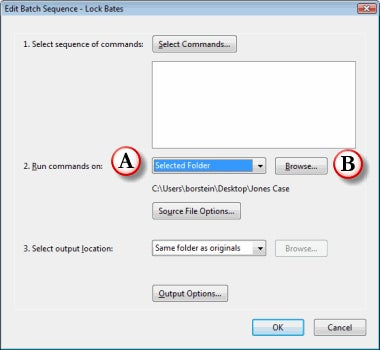
Running the “Lock Bates Number” Sequence
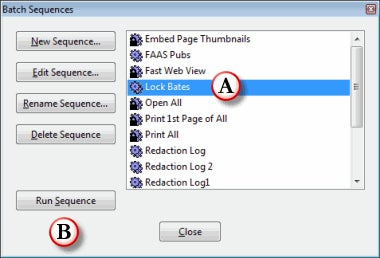
Here’s how to run the Lock Bates Number sequence you created above: