Comparing Scanned Documents Tips and Workarounds
Acrobat Pro includes tools that allow you to compare two PDFs to quickly spot the differences.
In Acrobat X Pro, the Document Comparison feature is available by choosing View>Compare Documents.
For a brief demonstration of this feature,
.Recently, I received an email from a law firm that was having trouble comparing two PDFs. The firm reported that during comparison, Acrobat couldn’t find any differences in the documents, even though visual differences were apparent during a visual inspection.
I was able to examine the documents and discovered that:
- The source documents were scanned documents
- One document was scanned in black and white. The other was scanned in greyscale.
- Documents were OCR’d
The difference in color space (black and white vs. greyscale) was enough to seriously affect Acrobat’s ability to detect changes. In effect, Acrobat saw these as being two completely different documents.
That’s probably a bug (I reported it), but we all still have a job to do. Fortunately, I was able to come up with a workaround.
Control the Scanning
When you can, make sure that scanned documents which need to be compared are scanned using identical settings.
That isn’t always possible if you receive documents from the other side or via the court. What to do?
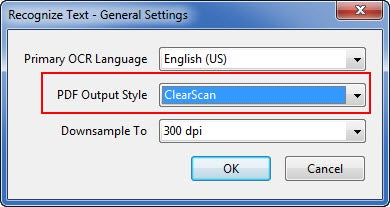
ClearScan to the Rescue
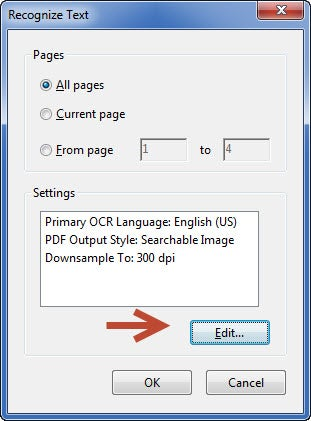
Acrobat offers different “flavors” of OCR. The type used most frequently by legal professional is searchable image, sometimes referred to as “image+text”. When Searchable Image OCR is performed on a scaned doc, the original scanned image is left in place in the PDF and an invisible layer of searchable text is added.
Acroat 9 introduced a new OCR option called ClearScan designed to enhance the quality of the document post-scan.
ClearScan works by turning the images which represent text characters on the page into smoothed vector outlines. Each character on the page is compared and all matching characters are replaced with a an outline character:
Original
ClearScan