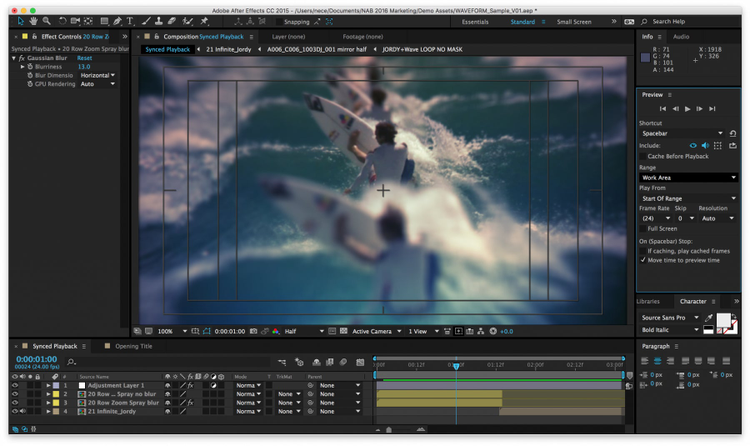
Earlier this summer, we released After Effects CC 2015.3 (13.8), which features a variety of performance and workflow enhancements.
In this article, we’re sharing more detail about how GPU-accelerated effects work, as well as other improvements made to effects.
Please, if you want to ask questions about these new and changed features, come on over to the After Effects user-to-user forum. That’s the best place for questions. Questions left in comments on a blog post are much harder to work with; the blog comment system just isn’t set up for conversations. If you’d like to submit feature requests or bug reports, you can do so here.
Effect rendering on the GPU
After Effects CC 2015 (13.8) can now accelerate rendering of certain effects using your computer’s GPU. This improves rendering performance for these effects by 2x-4x over rendering using only the CPU (depending on the frame being rendered and the speed of your GPU).
Effects that can render using the GPU are:
- Gaussian Blur
- Lumetri Color
- Sharpen
In the Effects & Presets panel, these effects show an icon next to their name indicating that they can render using the GPU.
GPU effect rendering is controlled via a new option in the Project Settings dialog, Video Rendering and Effects. When set to Mercury Software Only, the CPU is used to render these effects. When set to Mercury GPU Acceleration, the GPU is used to render these effects.
On Mac OS, Mercury GPU Acceleration can use OpenCL or Metal. (Metal is available only on Mac OS X 10.11. This initial support for Metal support is not yet fully optimized.) On Windows, GPU effect rendering can use CUDA or OpenCL.
GPU-accelerated effects may render with small color precision differences in an 8-bpc project when compared to CPU-only rendering. Set the project to 16-bpc or 32-bpc for accurate results. (This only applies when comparing GPU rendering to CPU rendering. The algorithms used by the CPU vs. the GPU use different methods to round color values, which at 8-bpc can result in a slightly different rendered result; at 16-bpc or 32-bpc the additional precision makes the differences negligible.)
Enable GPU effect rendering via scripting
GPU effect rendering can be enabled and disabled via scripting. The new read/write attribute app.project.gpuAccelType will return or accept an enum named GpuAccelType with one of the following values:


