Creative work has always meant working through steps. You start with a vision of what you want to create, but getting there means navigating tools, managing workflows, and building things piece by piece, pixel by pixel. The more complex the outcome, the more time you spend figuring out how to make it happen. That's been the tradeoff: control and precision, but often at the cost of more time, more complexity, and work spread across multiple tools.
The craft of learning those tools — the shortcuts, the workarounds, the way you chain steps together to get the result you imagined — has long shaped how creators bring ideas to life. But it also raised the barrier to entry and widened the gap between idea and output. What if that creative instinct could lead, without requiring you to manage every step along the way?
Today, we're introducing Firefly AI Assistant, powered by our creative agent, that brings the power and precision of Adobe’s creative apps into a single, conversational interface. Coming soon to Adobe Firefly, our all-in-one creative AI studio, Firefly AI Assistant enables creators to describe the outcome they want using their own words as the assistant orchestrates and executes complex, multi-step workflows across Adobe Creative Cloud apps including Firefly, Photoshop, Premiere, Lightroom, Express, Illustrator and more. Firefly AI Assistant introduces a fundamentally new way to create — one where you start with the vision, describe what you want and shape it as it comes together with the help of the assistant.
Moving from tools to outcomes
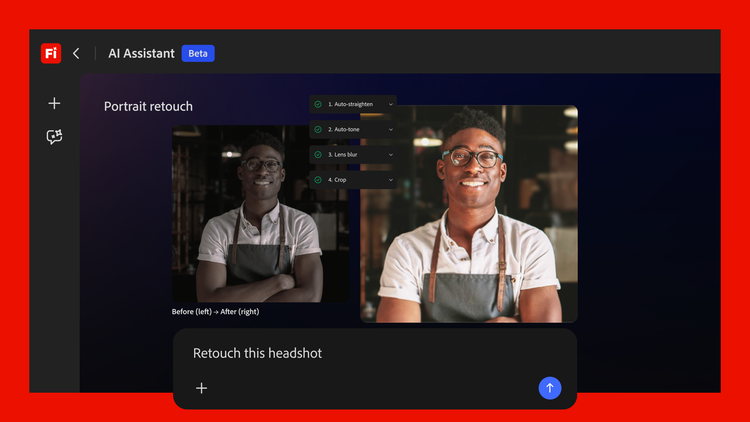
With Firefly AI Assistant, you describe the outcome you want and the assistant orchestrates and executes the steps behind the scenes, connecting creative logic and best-in-class tools across Adobe’s creative apps. You no longer have to map the process. You can start from the outcome.
With Firefly AI Assistant, you describe the outcome with your own words and the assistant will orchestrate the multi-step workflows behind the scenes.
Firefly AI Assistant is the evolution of Project Moonlight, which we first previewed at Adobe MAX last year and have since advanced through private beta. Whether you’re new to Adobe’s apps and tools or a seasoned creative professional, AI Assistant helps you stay closer to the idea, spending more time shaping it and less time managing how it gets made. And because creating is deeply personal, you stay in the loop as the assistant executes, stepping in at any point to guide direction, adjust outputs, and create something that’s distinctly yours.
How Firefly AI Assistant will work
- Simply describe what you want: With Firefly AI Assistant’s single, unified conversational interface, you describe what you want to create and the assistant orchestrates and executes complex, multi-step workflows across Adobe’s apps — surfacing results, maintaining context across sessions, and enabling you to explore, iterate, and direct what happens next. And when you move into a specific Adobe app, say Photoshop for pixel-level image editing, the conversational interface and the context will move into the app with you so you can keep building without starting over.
- You direct. The assistant executes: Firefly AI Assistant is designed to keep you in control. It suggests actions, orchestrates and executes workflows, and accelerates progress, while you direct the outcome. You can step in at any point to refine outputs, redirect the work, or adjust details as things evolve. And because the assistant works with native Adobe file formats, final outputs remain fully editable — giving you precise, pixel-level control. The creative vision is always yours.
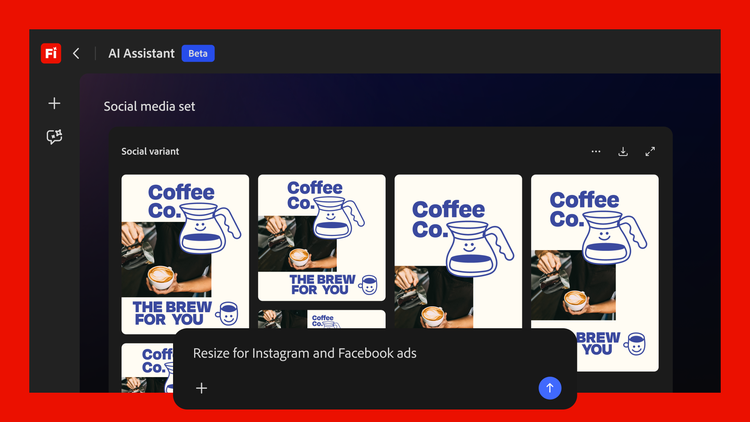
- Start complex workflows with Creative Skills: A growing library of Creative Skills, purpose-built for creative workflows, allows you to run multi-step workflows from a single prompt — and customize them to match how you work. Say you've captured the perfect image and want to publish it across the social channels you're active on. Start with the "social media assets" skill and direct the assistant to handle the sequence: crop around the subject or use Generative Extend to expand the image, adapt it to each platform's format, optimize file sizes to meet platform requirements, and save the outputs to your Creative Cloud storage. It can even turn a still into an animation.